If you're on a Windows machine, open the windows command prompt or "Git Bash".
Once you've opened your terminal application, type git version. The output will either tell you which version of Git is installed, or it will alert you that git is an unknown command. If it's an unknown command, read further and find out how to install Git.
Install Git on Windows
Navigate to the latest Git for Windows installer and download the latest version.
Once the installer has started, follow the instructions as provided in the Git Setup wizard screen until the installation is complete.
Open the windows command prompt (or Git Bash if you selected not to use the standard Git Windows Command Prompt during the Git installation).
Type
git versionto verify Git was installed.
install 'uv'
powershell -ExecutionPolicy ByPass -c "irm https://astral.sh/uv/install.ps1 | iex"
now clone the 'repository' this has all of the code you need to run the application.
open your terminal
'cd' is the change directory command 'mkdir' is the make directory command. mkdir textanalysis
after the directory is made
git clone https://github.com/rye-dotcom/textanalsysis.git textanalysis/
this is 'git' following the action to copy the code from the 'git' to your directory. Next we will use 'uv' to install the rest of the software.
uv will also install python.
uv venv
this creates the 'virtual environement', it will be 'hidden' located at '.env'
Activate the environment
source .venv/bin/activate
in windows the slashes might be 'backwards' \
source .venv\bin\activate
now you should get a prompt that reads the environment is activated.
uv pip install -r pyproject.toml
this will install the components
uv run python -m spacy download en_core_web_sm
this installs the language component.
now run the software
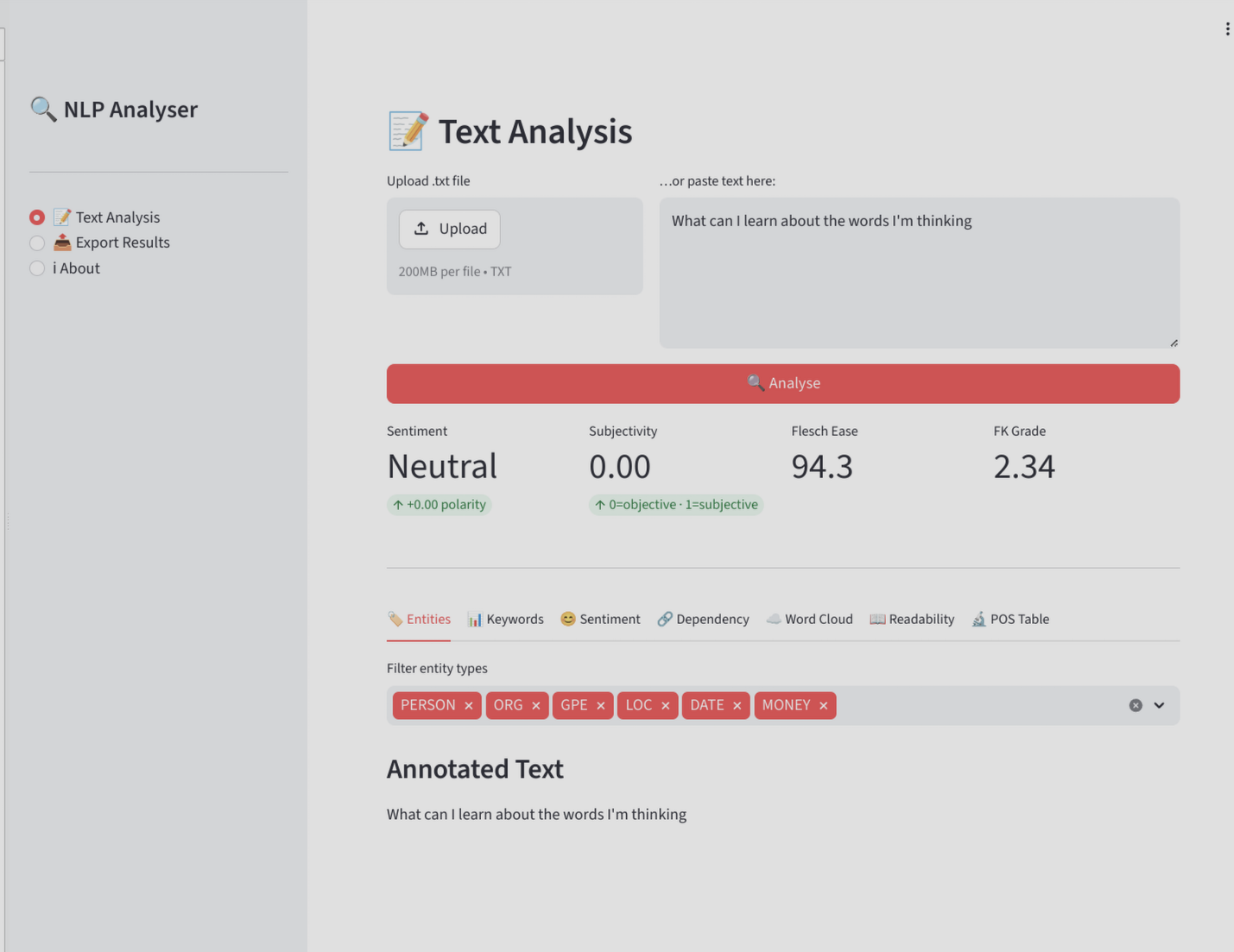
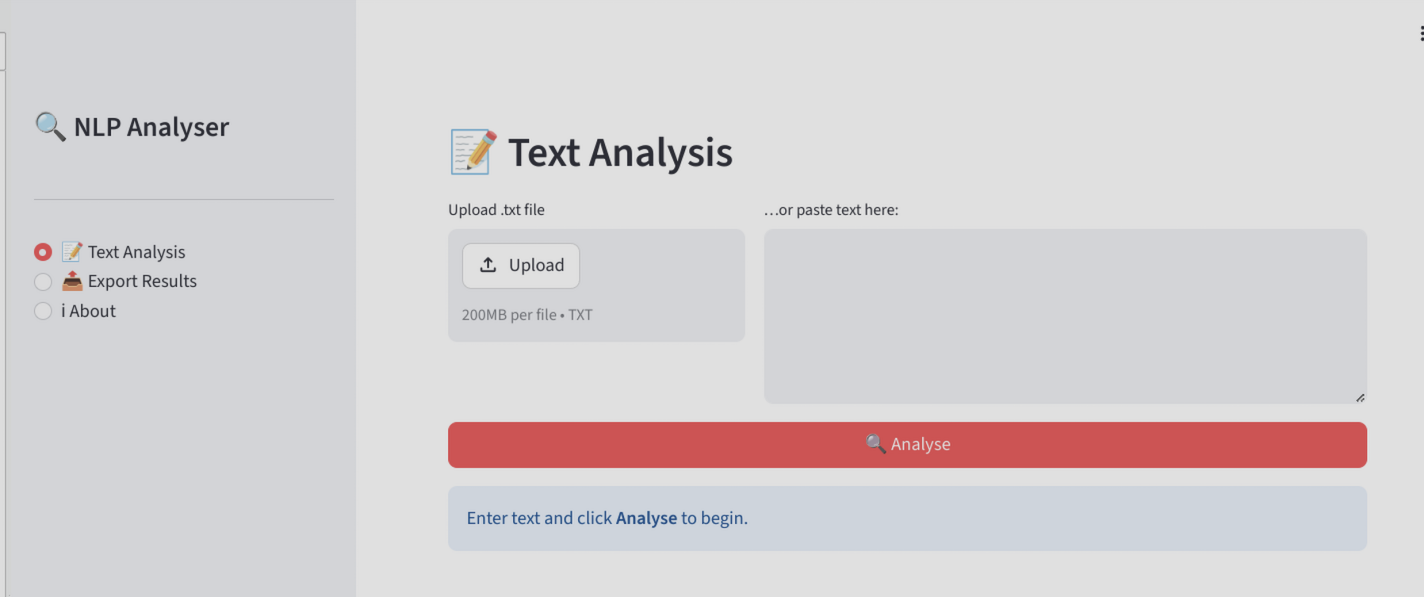
uv run streamlit run text_analysis.py
this runs uv, whcih calls streamlit and then the app, which ends in '.py'